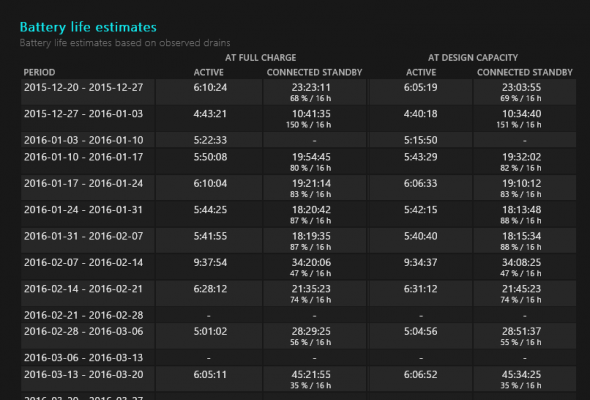
Windows 10 has a built-in, hidden battery report tool that can tell you everything you need to know about your laptop battery, including your battery life estimate and its capacity over time. Use this powercfg command to better understand your battery's health and optimize your computer's battery life.
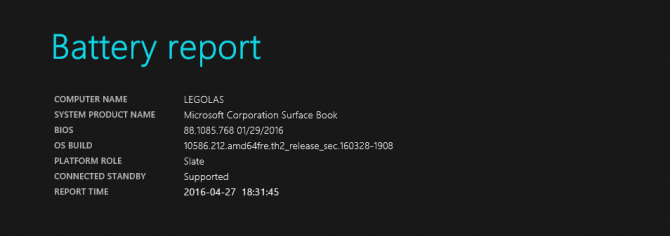
We'll use the command prompt to generate an HTML battery report for your computer.
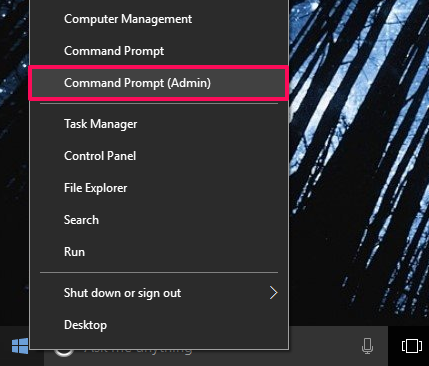
1. Hit Windows Button + X and select Command Prompt (Admin). This is the quickest way to open the Command Prompt as an administrator.
2. Type in and enter: powercfg /batteryreport
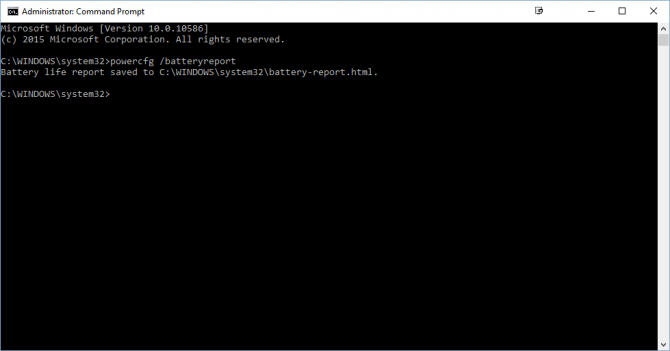
This command will create a battery report under C:\WINDOWS\system32\battery-report.html or, in Windows versions older than Windows 10, under C:\Users\[Username]
3. Open the Battery report HTML file to view it.
The report will give you more information about the batteries in your system, as well as how they've been used over time.
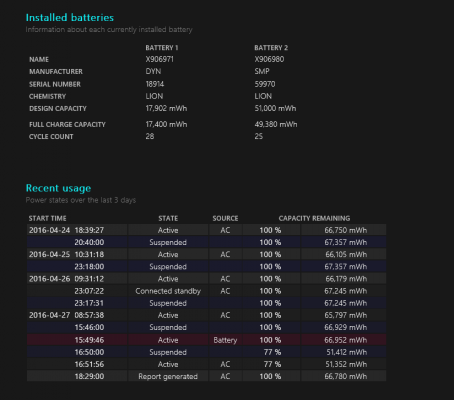
Perhaps of most usefulness to most people is the battery life estimates--how long you can expect your battery to last based on actual usage--and how it's changed since you first installed the OS. It's more accurate and precise than relying on the battery icon in your taskbar.